A side panel for the Meta Pixel
Is my Meta Pixel working?
Meta Pixel Event Debugger shows every event your page sends, with its parameters, the moment it fires. When something is wrong it tells you what and how to fix it.
Works on any website that uses the Meta Pixel. No account needed.
Three steps from guessing to knowing
- 1
Open the panel
Go to the page you want to test and click the toolbar icon. Reload the page once so the panel can record it from the very start.
- 2
Click through your site
Browse, add a product to the cart, start the checkout. Each pixel event shows up in the panel the moment the page sends it.
- 3
Read the fixes
Anything that looks wrong is listed under Issues with one plain sentence about the problem and one about the fix.
One panel, three views
The icon rail on the left switches between what was sent, how the pixel is set up and what needs fixing.
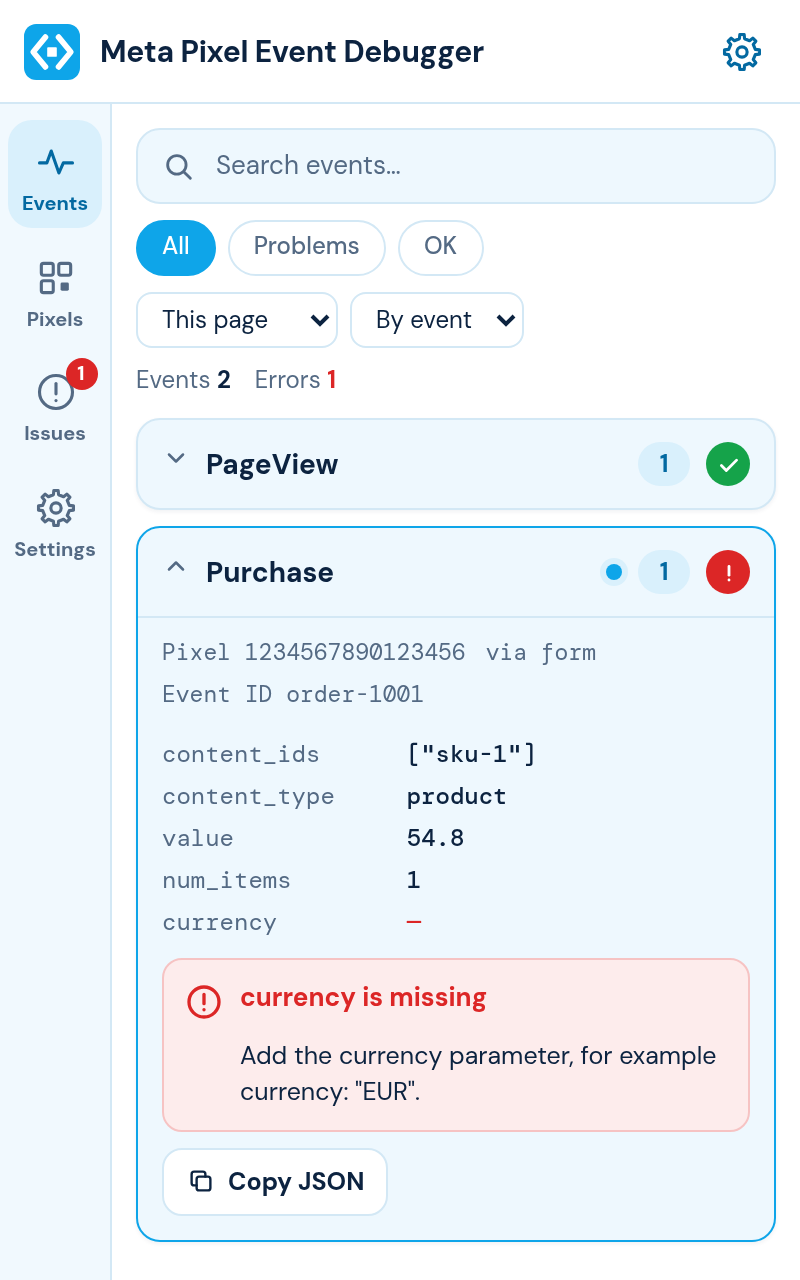
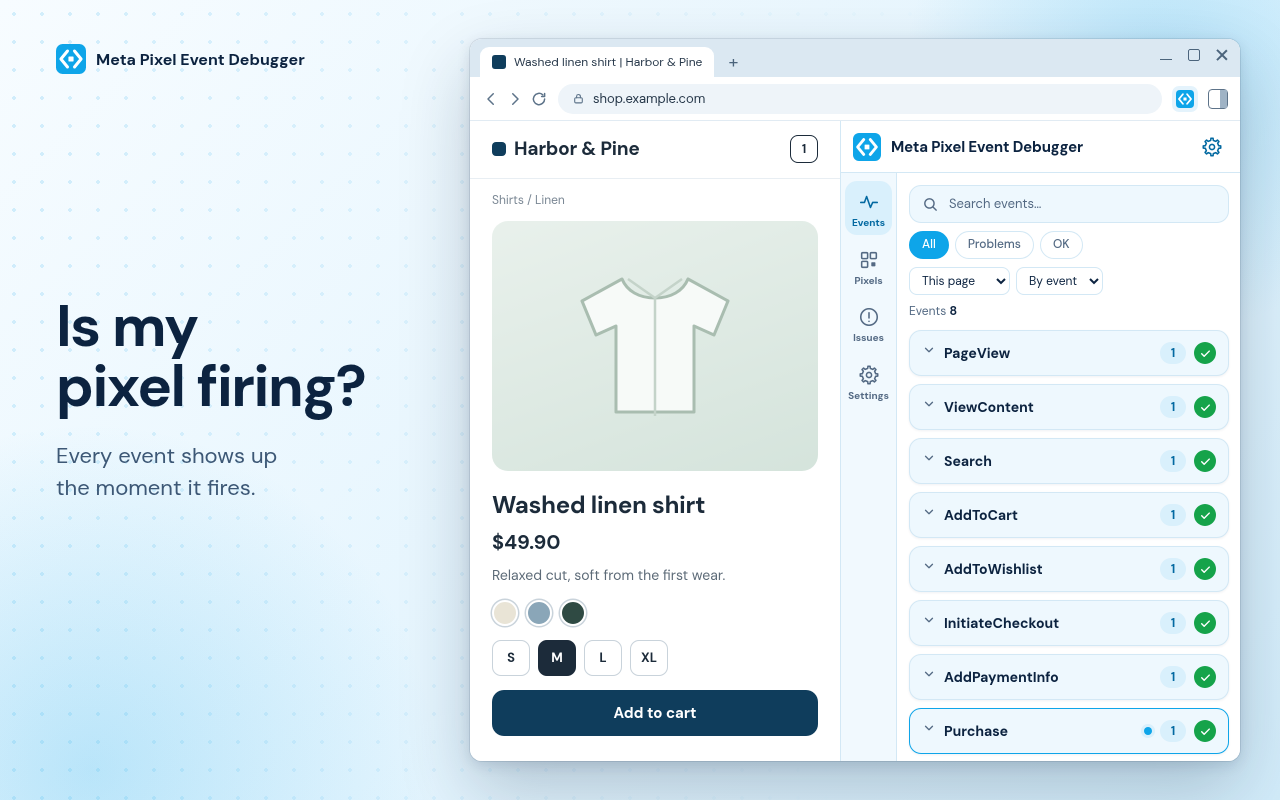
Is my pixel firing?
Events
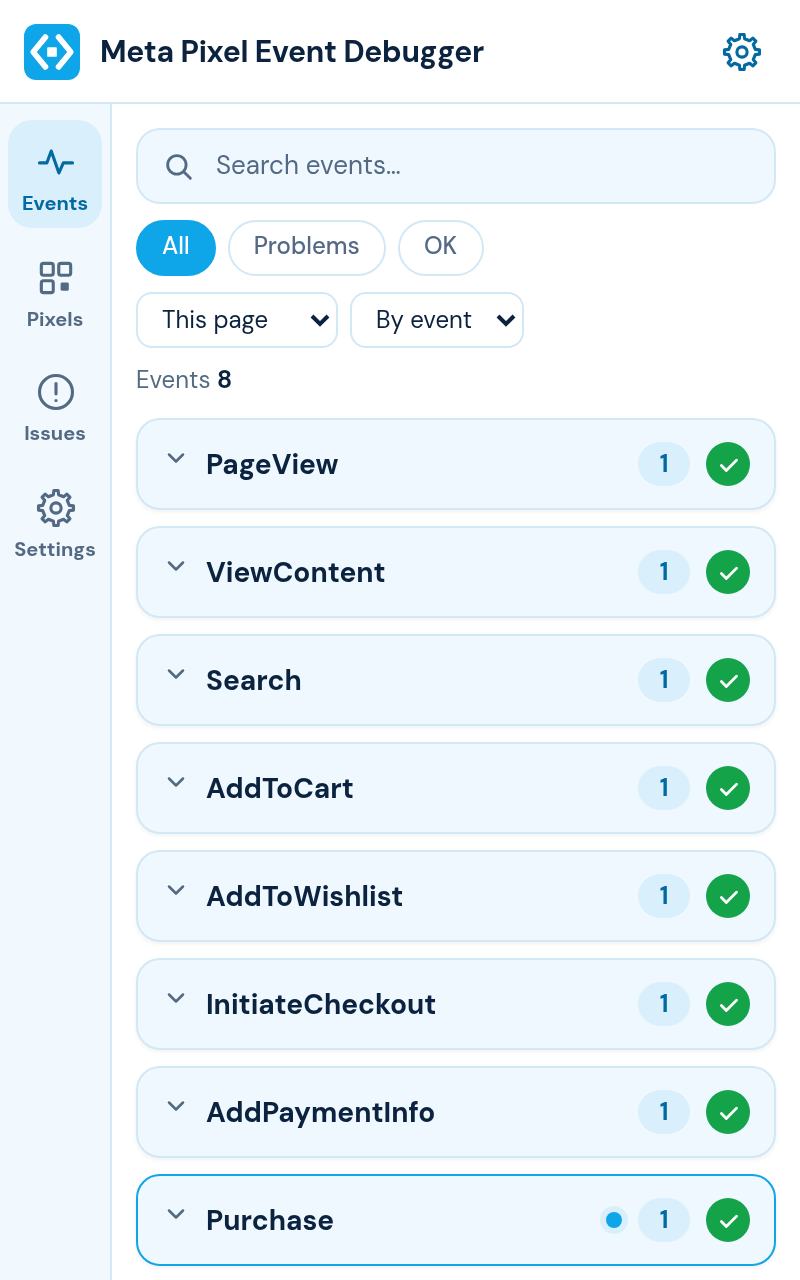
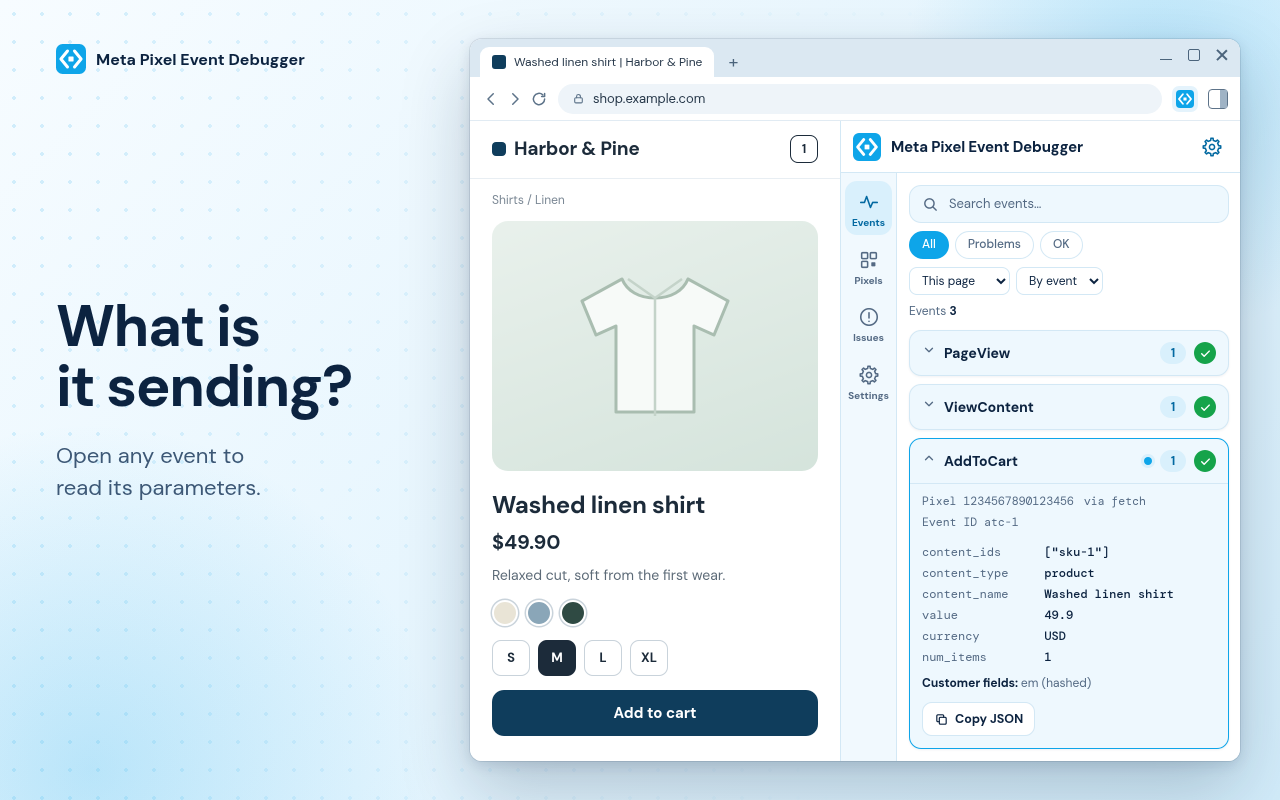
Every event of the page you are on, grouped by name with a counter and an OK or error mark. The newest one is highlighted. Open any group to read its parameters in a simple two-column list.
- Search by event name, parameter or page
- Filter to problems only
- Group by event or by page, and look back at earlier visits
- Copy any event as JSON
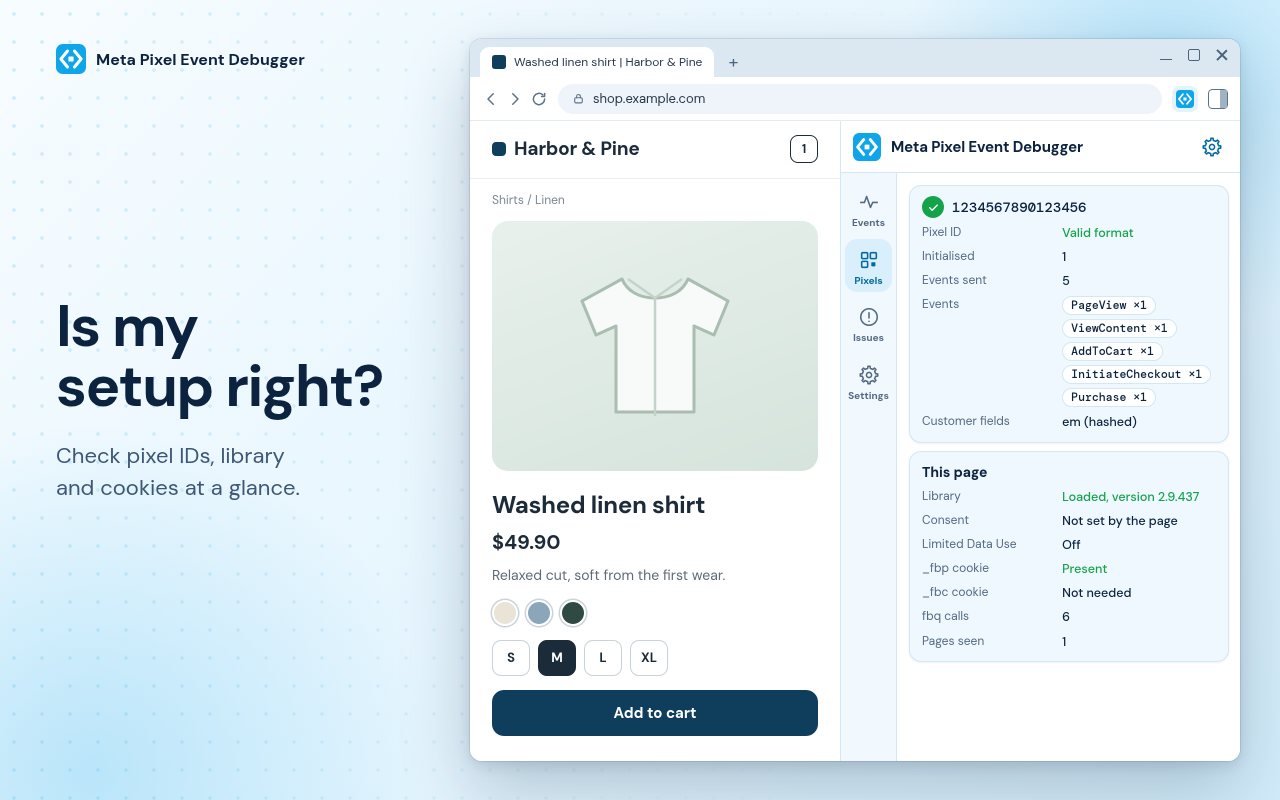
Is my setup right?
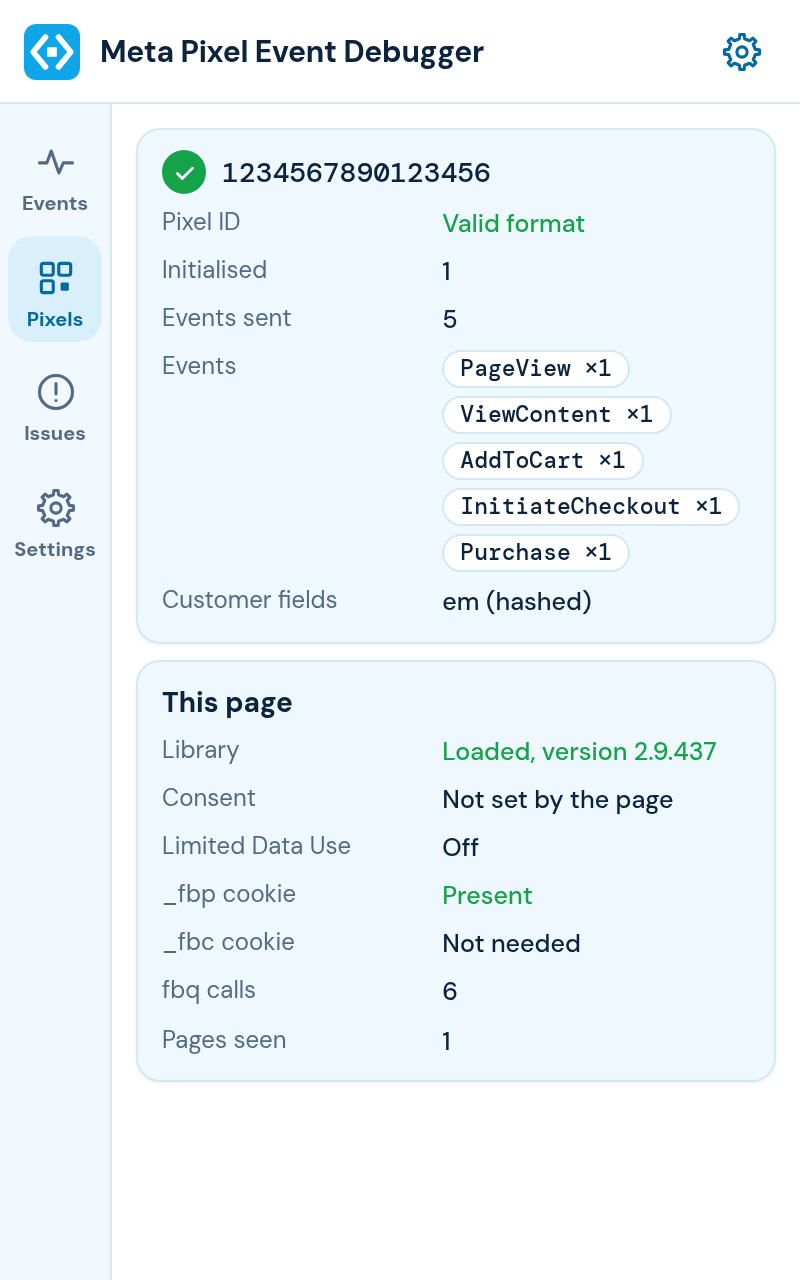
Pixels
Each pixel found on the page with its ID, whether the format is valid and how many events it sent. A second card shows the library, consent, Limited Data Use and the pixel cookies.
- Pixel ID format and how often it was initialised
- Which customer fields are passed, and whether they are hashed
- Library version, consent and Limited Data Use
- The _fbp and _fbc cookies
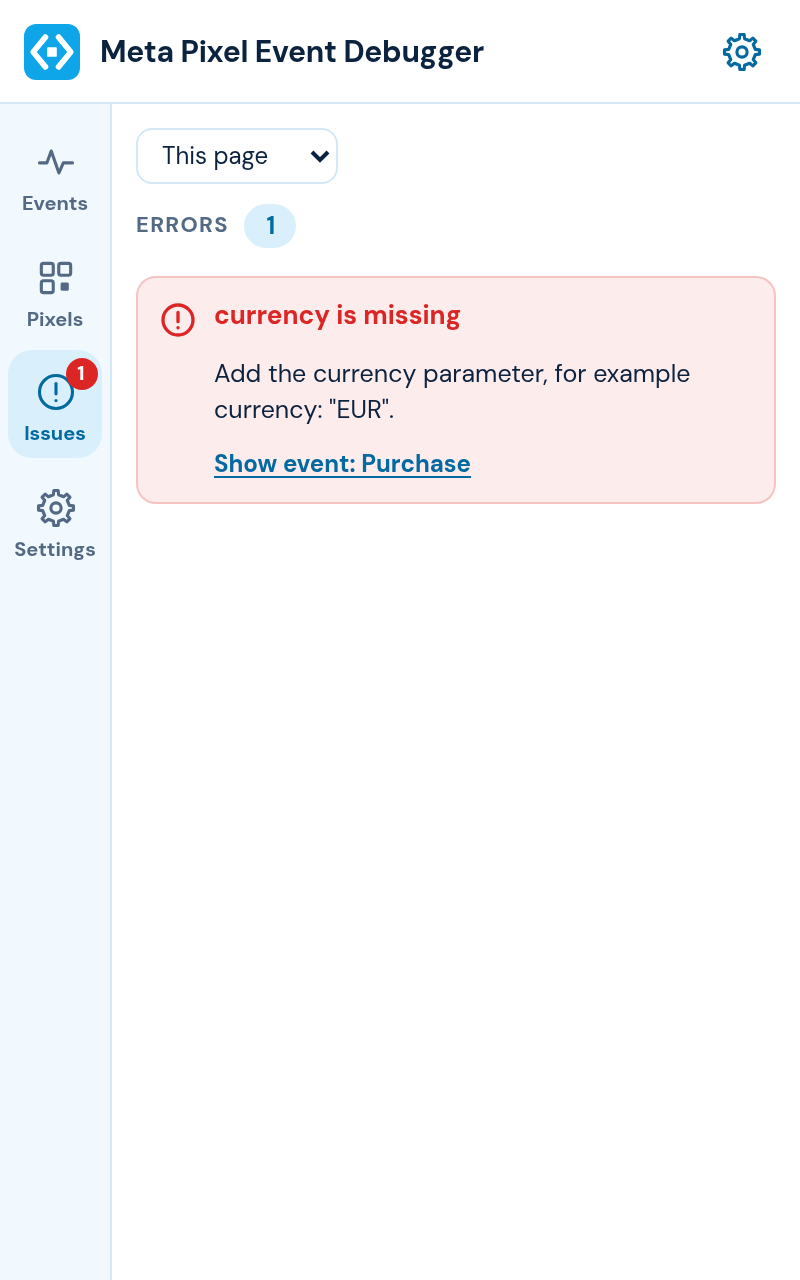
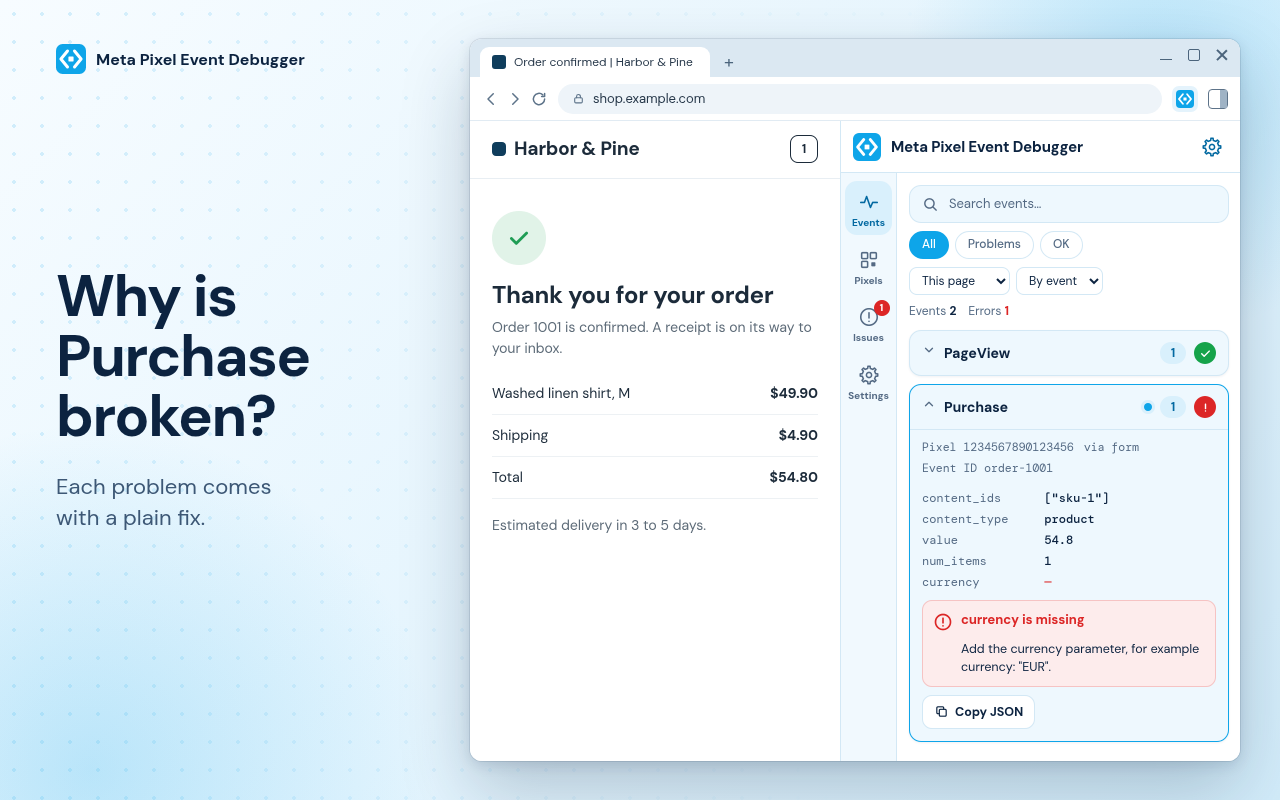
Why is Purchase broken?
Issues
All problems of the page sorted by severity. Each has a sentence that says what is wrong, a line that says how to fix it and a button that jumps to the event. A red badge on the icon shows the count.
- Errors, warnings and tips
- A fix written for people, not for logs
- Jump straight to the event that caused it
- Optional notifications for errors
What it checks for you
Each check ends in a plain sentence and a fix. Nothing is hidden behind a score.
Value and currency
Purchase without a value or currency, amounts with symbols or commas, zero amounts and codes that are not real currencies.
Product lists
Content IDs that are not a list, a missing content type and contents entries without an ID or quantity.
Names and spelling
Misspelled parameter names and event names with the wrong capitalisation or a custom event that copies a standard one.
Duplicates
The same event fired twice within seconds, usually by two scripts doing the same job.
Event IDs
Conversion events without an event ID and IDs that are reused for different events.
Pixel setup
Invalid pixel IDs, a pixel that was initialised twice, a missing PageView and a library that never loaded.
Consent
Events that leave while consent is revoked and pages that run with Limited Data Use on.
Personal data
Email addresses and phone numbers in parameters or page addresses, and customer fields sent as plain text.
Cookies
A missing _fbp cookie and a click ID in the address that never became an _fbc cookie.
Catches events however they are sent. Image requests, beacons, fetch calls and the form posts used for larger payloads are all picked up, also inside frames. Single page apps are followed as the address changes, so each route gets its own place in the list.
Made for a working day
Export
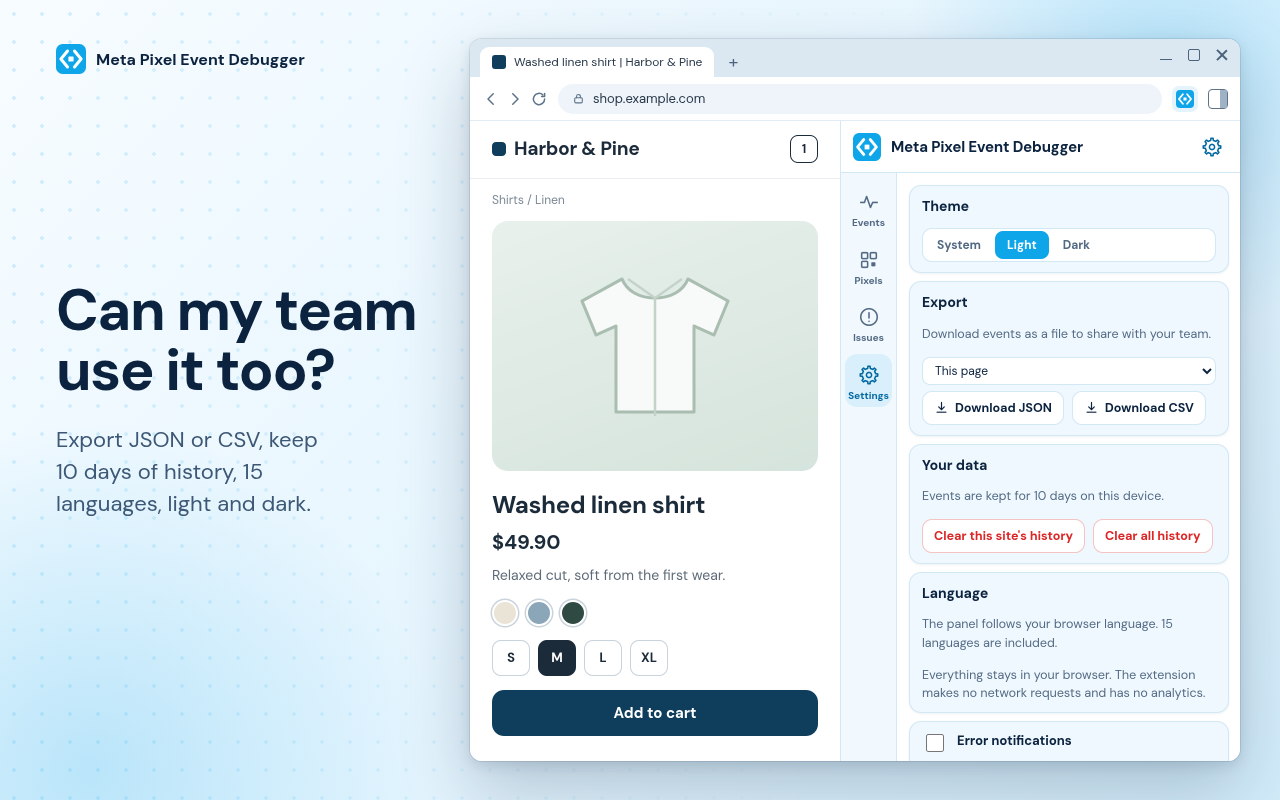
Download the events as JSON or CSV to share with a client or a developer.
10 days of history
Each site keeps its history on your device. History survives closing the tab.
Light and dark
Follows your system by default. Switch with one click.
15 languages
The panel follows your browser language, including right-to-left.
See it in use
Everything stays in your browser
The extension reads pixel requests and nothing else on the page, and it never changes the page.
- It makes no network requests of its own, has no account, no servers and no analytics.
- Email addresses and phone numbers are masked before anything is saved, so they never reach the history.
- Customer fields are stored only as names with a note on whether they were hashed.
- Events are deleted after 10 days, or sooner when you clear them.
Questions and answers
How do I test and debug my Meta Pixel?
Install the extension, open the page you want to test and click the toolbar icon. Reload the page once so the panel can record it from the start. Then click through the steps you care about, such as adding a product to the cart, and watch the events arrive. Anything the panel finds is listed under Issues with a fix.
Does it work with the Facebook Pixel too?
Yes. The Facebook Pixel and the Meta Pixel are the same product under two names. The extension reads the requests and calls of both.
Why does the panel say there is no pixel activity?
The panel records from the start of a page load. If the extension was installed after the page opened, reload the page once. Pages that have no Meta Pixel will stay empty.
Does it check my server events?
No. It shows what the pixel sends from the browser, which is the part you can observe in the page.
Where is my data stored?
Only in your browser. History for each site is kept for 10 days and you can clear it at any time. The extension makes no network requests of its own.
Does it work on every website?
It works on regular websites. Browser pages and the Chrome Web Store cannot be inspected by any extension.
Is it affiliated with Meta?
No. Meta Pixel Event Debugger is an independent tool. It is not affiliated with, endorsed by or sponsored by Meta Platforms, Inc.
Find out what your pixel really sends
Add the extension, open your shop and watch the first event arrive.